
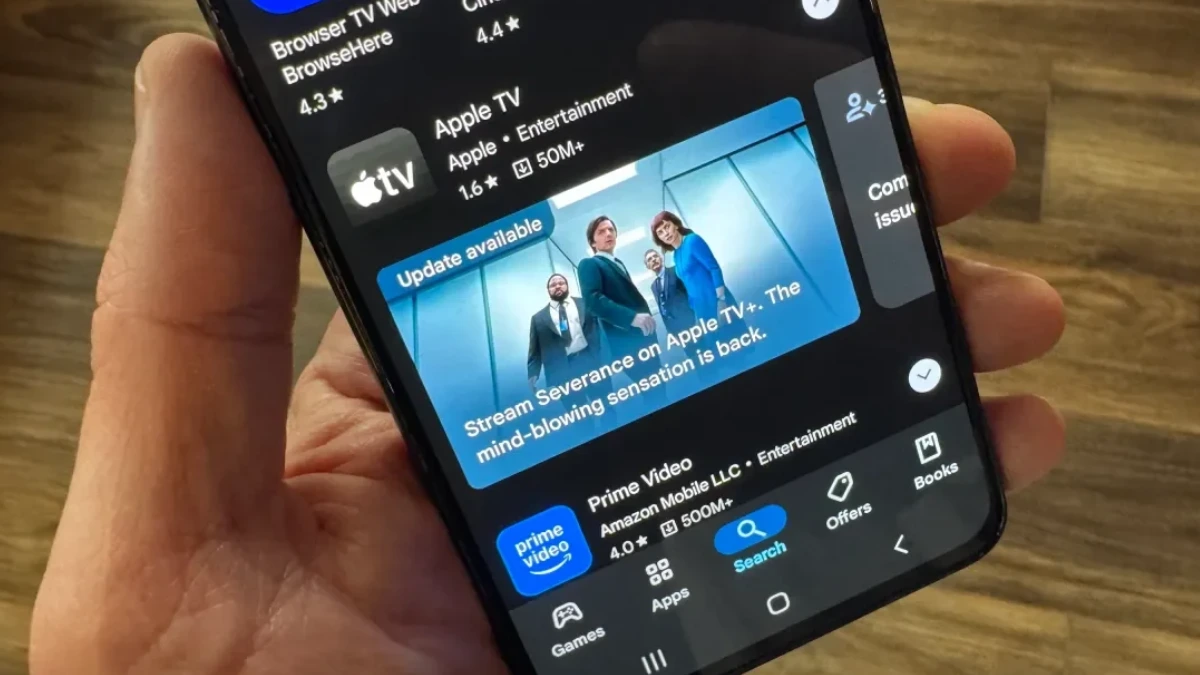
The tv app ndroid TV and Google TV offer access to a wide range of streaming services, entertainment platforms, games and other applications. Users can easily install new apps, update existing ones and remove applications they no longer need. Managing these apps properly can also help keep a smart TV organised and make better use of available storage.
Whether you own an Android TV or a Google TV device, the process of managing applications is relatively simple. Both platforms provide access to Google Play, although their menus and navigation options may differ slightly depending on the television manufacturer and software version.
How to Install Apps on Android TV and Google TV
Installing applications on an Android TV or Google TV device is straightforward. Before getting started, make sure your television is connected to the internet and signed in to a Google account.
On Android TV, open the Home screen and navigate to the Apps section. Select Google Play Store and use the search option to find the application you want to install. Once you locate the correct app, open its listing and select Install.
On Google TV, you can search for applications directly from the Home screen or browse through the Apps tab. Select the application you want, review its details and choose Install when the option is available.
After installation, the application will appear in your apps section. Open it and sign in with your account if the service requires authentication.
It is worth checking the developer information and any subscription or payment requirements before installing an application.
How to Update Apps on Android TV and Google TV
Keeping applications updated is important for security, performance and access to new features. Developers regularly release updates to fix problems, improve compatibility and introduce improvements.
To update apps, open the Google Play Store on your television. Depending on the interface, navigate to My Apps or open your profile and select Manage apps and games. Look for available updates and choose the applications you want to update.
If several updates are available, you may be able to select Update all to install them together.
Google TV users can also access Google Play Store through the search function if it is not immediately visible on the Home screen.
Some televisions offer an automatic app-update setting. Enabling this option allows compatible applications to receive updates automatically when available.
Remember that application updates and television software updates are different. Updating an individual app does not automatically update the Android operating system running on your TV.
How to Uninstall Apps on Android TV and Google TV
Removing unwanted applications is another useful way to manage your smart TV. If you no longer use certain streaming services or games, uninstalling them can help free up storage space.
On Android TV, open Settings and navigate to Apps. Select the application you want to remove, choose Uninstall and confirm your selection.
On Google TV, navigate to the Your apps section and highlight the application you want to delete. Press and hold the Select button on your remote, open View Details and choose Uninstall if the option is available.
Some preinstalled applications cannot be completely removed because they are part of the television’s system software. In those cases, the device may offer an option to disable the app instead.
Before uninstalling an application, make sure you have saved any important local information and know your account login details.
Important Things to Know Before Removing Apps the tv app
Uninstalling an application does not necessarily cancel an active subscription. For example, deleting a streaming application from your television does not automatically stop recurring payments.
If you have a paid subscription, check the billing service through which you purchased it. You may need to cancel the subscription separately through Google Play or the service provider.
Also, removing an application shortcut from the Home screen is not always the same as uninstalling the application. Check the device’s storage settings if your goal is to free up space.
Tips for Better App Management the tv app
To keep your Android TV or Google TV running smoothly, regularly review your installed applications and remove services you no longer use.
Keep frequently used apps updated, check available storage and avoid installing applications from unknown or untrusted sources. You should also review subscription costs before installing paid services.
If an application is unavailable in the Play Store, check whether it supports your television model and region. Not every Android mobile application is compatible with smart TVs.
Conclusionthe tv app
Managing applications on Android TV and Google TV is an easy way to improve your television experience. Users can install entertainment apps, download updates and uninstall unwanted software through the available settings and Google Play Store.
By keeping applications organised and updated, checking storage regularly and managing subscriptions separately, you can make better use of your smart TV and enjoy a more convenient entertainment experience.